Two Bitrates for One Channel: Alta with Senta
Checked in the lab on November 15, 2026, with Astra 250612, Alta 261020 and Senta v2026-11-02.
A channel in Alta can have several variants, for example two bitrates. Senta makes the second one: it runs FFmpeg, and Alta starts and stops the job. This guide adds a 640-pixel variant at 1 Mbit/s to the channel from the guide From Astra to Alta.
What was checked
Section titled “What was checked”Every step below was done in the web interface as written, only with other addresses, with two exceptions: the API key was read from the Senta configuration file, and the channel news had no archive storage. Alta and Senta ran on one server; Astra ran on another and played a test file. The transcoded stream went from Senta to Alta over UDP on 127.0.0.1. FFmpeg was version 7.1.4 from Fedora 42, with the libopenh264 encoder and no NVIDIA card. The screenshots are from that run.
Not checked here: NVENC, libx264, Senta on a separate server, and how a player switches between the two variants.
What you need
Section titled “What you need”- A channel in Alta that plays. Here it is
news, made in From Astra to Alta. - Senta on a server that Alta can reach, with a license or the test key. See Install Senta and Activate a license or the test key.
- FFmpeg on the Senta server. Senta manages FFmpeg and does not include it.
- A free range of UDP ports on the Alta server for the transcoded stream.
In the examples Senta answers at senta.example.com:8018 and Alta at alta.example.com:8100, with its OTT server at alta.example.com:8102. The source is the Astra link http://astra.example.com:8000/play/lab1.
1. Create a profile in Senta
Section titled “1. Create a profile in Senta”Create a profile in Senta as described in Create an FFmpeg Profile in Senta: choose Manual, name the profile and write this command.
ffmpeg -y -hide_banner -i ${i} -map 0:v:0 -map 0:a:0 -c:v libopenh264 -b:v 1M -vf scale=640:-2 -c:a aac -b:a 128k -r 25 -g 50 -f mpegts ${o}Use a profile whose only variables are ${i} and ${o}: Alta fills in these two and nothing else. In the lab a job made from the starter profile HD h264 did not run, because its codec variable stayed empty.
libopenh264 is the H.264 encoder of the FFmpeg on the lab server. With another FFmpeg build, put the H.264 encoder it has after -c:v. Read more in Profiles.
2. Find the API key of Senta
Section titled “2. Find the API key of Senta”The key is in the Senta Settings, in the API key field. The page Senta Integration API shows where to find it.
3. Connect Alta to Senta
Section titled “3. Connect Alta to Senta”In the Alta web interface open Settings → Senta Settings and turn on Enable. Put the address of Senta with its port into Senta API URL with port and paste the key. Set Output IP to the address where Alta takes the result: 127.0.0.1 when Alta and Senta run on one server. Click Save.
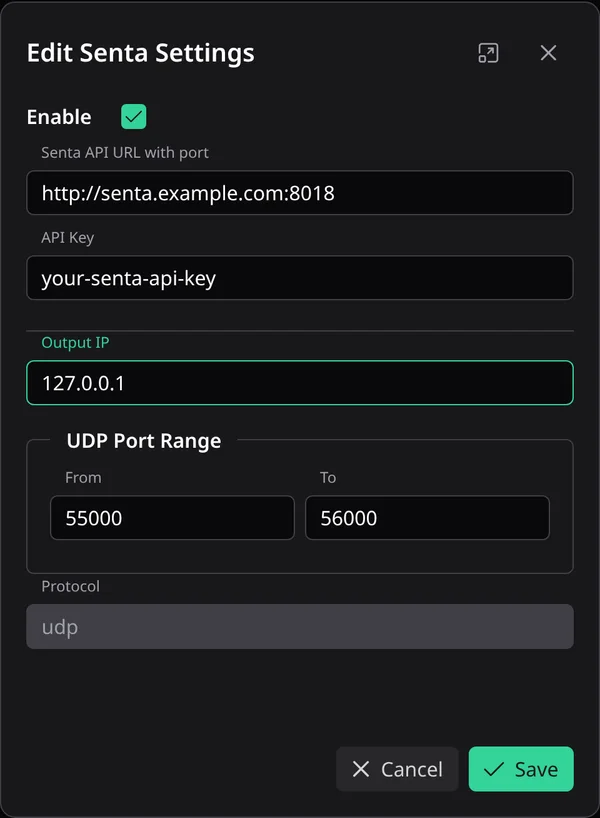
The item Transcoding appears in the top bar. Read more in Senta Transcoder.
4. Create the transcoding job
Section titled “4. Create the transcoding job”Open Transcoding and click Create. Turn on Enable, name the job, put the source link into Input URL and pick the profile. Turn on Auto create receiver and Restart on crash. Click Save.
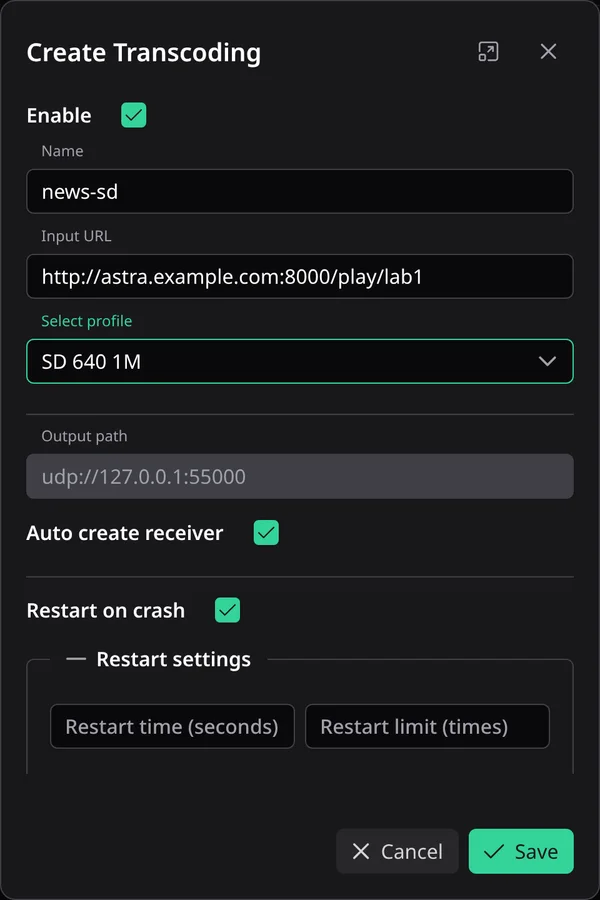
Alta lists the job with its uptime:

In Senta the same process is in the group Alta. In the lab it showed about 48% CPU usage.
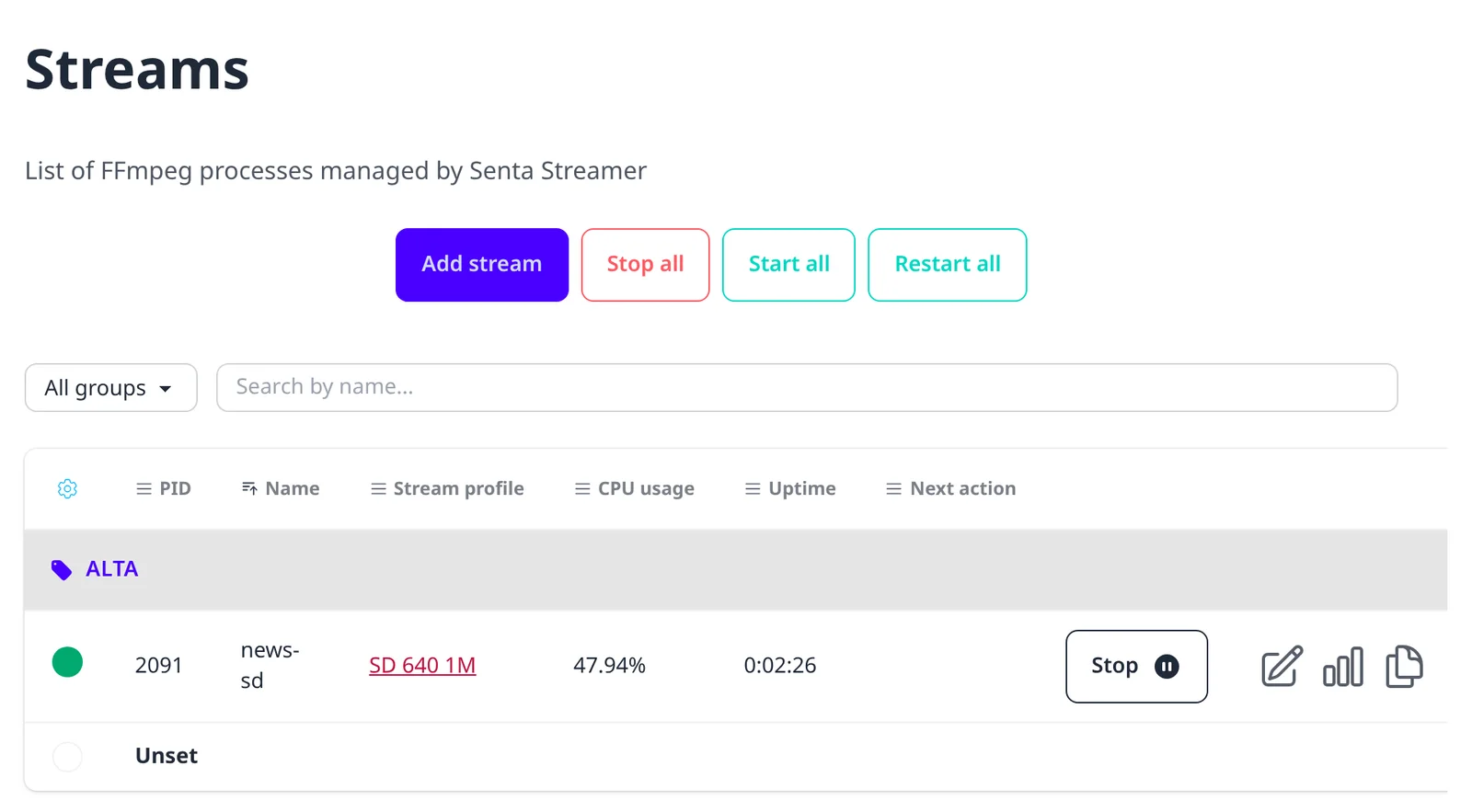
Do not edit or delete this process in Senta: Alta owns it.
5. Turn on the new receiver
Section titled “5. Turn on the new receiver”Open Receivers. Alta made a receiver with the name of the job and the UDP address of the result, and left it off. Turn it on with its switch. A few seconds later it shows the speed:

6. Add the variant to the channel
Section titled “6. Add the variant to the channel”Open Channels and edit the channel. In Variants click +, name the new variant sd, turn on Enable and pick the new receiver. Click Save.
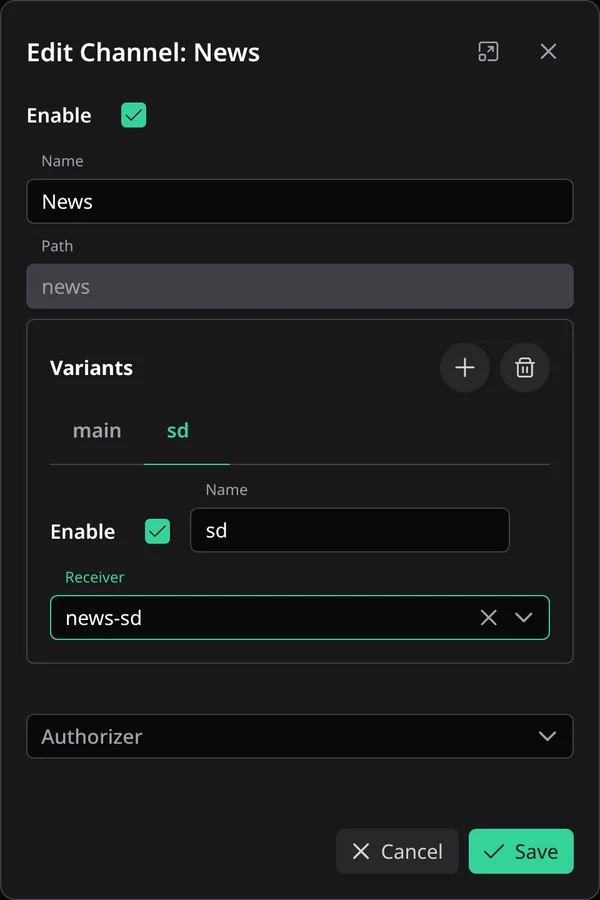
The channel now has two receivers:

7. Check the playlist
Section titled “7. Check the playlist”Ask Alta for the playlist of the channel:
curl -sS http://alta.example.com:8102/news/index.m3u8#EXTM3U#EXT-X-STREAM-INF:BANDWIDTH=3345898,CODECS="avc1.64001f,mp4a.40.33",RESOLUTION=1280x720,FRAME-RATE=25http://alta.example.com:8102/news/main/03c63358.m3u8#EXT-X-STREAM-INF:BANDWIDTH=1209216,CODECS="avc1.42c01e,mp4a.40.2",RESOLUTION=640x360,FRAME-RATE=25http://alta.example.com:8102/news/sd/03c63358.m3u8The playlist lists both variants, and a player picks one of them. In the lab ffmpeg decoded each link for 10 seconds: 1280×720 from main and 640×360 from sd.
What next
Section titled “What next”- For one more bitrate, make one more profile, job and variant: one job per profile and one variant per job.
- The starter profiles of Senta are described in Starter profiles.
- All settings of the integration are in Senta Transcoder.