From Astra to Alta: HLS and a TV Archive for Your Channels
Checked in the lab on November 15, 2026, with Astra 250612 and Alta 261020.
Astra receives TV channels. Alta delivers them as HLS and keeps the archive. This article takes one channel from Astra to a player through Alta, then imports the other channels at once. Each step shows the web interface first; the API tab has the same step as a command.
What was checked
Section titled “What was checked”Every step below was done as written, only with other addresses: once in the web interface and once with the API, each time on a new Alta service with the shared test license. Astra ran on another server and played a test file as the channel lab1. The screenshots are from that run.
Not checked here: UDP between the two servers, DVB reception, authorization, and the Astra license step - the lab Astra used a license that was already on its server.
What you need
Section titled “What you need”- Astra with a working channel. See Install Astra.
- Alta, with the admin login and the ports from its install wizard. See Installing Alta.
- The Alta server must reach the HTTP port of Astra.
In the examples Astra answers at astra.example.com:8000. The Alta web interface and API are at alta.example.com:8100 and its OTT server at alta.example.com:8102: these are the ports the Alta 261020 wizard offers by default.
1. Open HTTP access in Astra
Section titled “1. Open HTTP access in Astra”In the Astra web interface open Settings → HTTP Play, turn on Allow HTTP access to all streams and click APPLY & RESTART. Astra restarts and asks you to sign in again. Read more in HTTP Play.

Ask Astra for its playlist:
curl -s http://astra.example.com:8000/playlist.m3u8#EXTM3U#EXTINF:-1 group-title="-",Lab Onehttp://astra.example.com:8000/play/lab1Each link is the HTTP MPEG-TS address of one channel: /play/ and the channel ID.
The lab ran inside one network, without authorization. On your server anyone who reaches this port can open the channels: limit the port with a firewall or read HTTP Authorization.
2. Create a storage for the archive
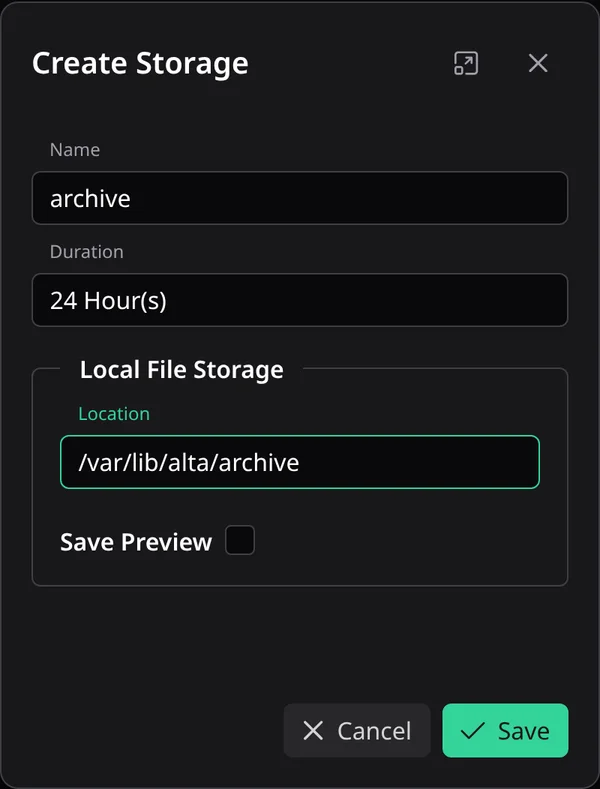
Section titled “2. Create a storage for the archive”In the Alta web interface open Settings → Storages and click Create. Fill in the name, the duration in hours and the directory, then click Save.
Get a token first:
TOKEN=$(curl -sS -X POST 'http://alta.example.com:8100/api/login' \ -H 'Content-Type: application/json' \ -d '{"id": "admin", "password": "PASSWORD"}')Then create the storage:
curl -sS -X POST -H "Authorization: Bearer $TOKEN" \ -H 'Content-Type: application/json' \ 'http://alta.example.com:8100/api/ott/storage' \ -d '{"id": "archive", "duration": 24, "local": "/var/lib/alta/archive"}'Alta answers 204 with an empty body. Read more in HTTP API Quick Start and Storages API.
Give each storage its own empty directory: when you delete a storage or a channel, Alta removes the archive from it. In the lab Alta made the directory itself when the recording started.
3. Add the Astra channel as a receiver
Section titled “3. Add the Astra channel as a receiver”Open Receivers and click Create. Turn on Enable, give the receiver a name and put the Astra link into Source. Click Save.
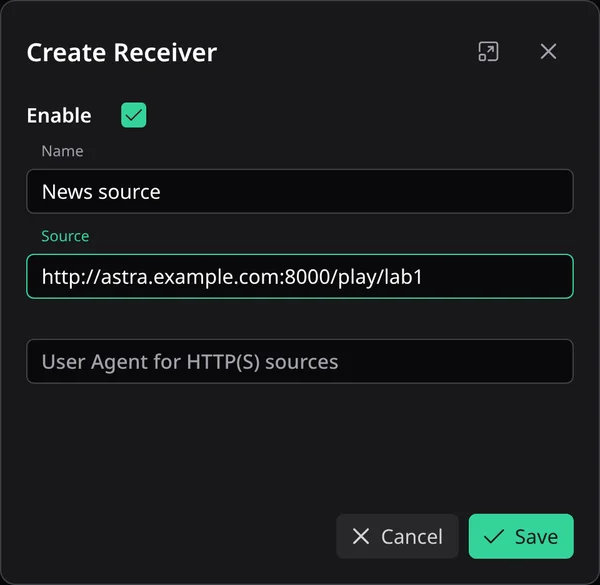
A few seconds later the list shows the speed of the stream:

curl -sS -X POST -H "Authorization: Bearer $TOKEN" \ -H 'Content-Type: application/json' \ 'http://alta.example.com:8100/api/ott/receiver' \ -d '{"id": "news-source", "name": "News source", "source": "http://astra.example.com:8000/play/lab1", "enable": true}'Alta answers 204. Read more in Receivers API.
4. Create the channel
Section titled “4. Create the channel”Open Channels and click Create. Turn on Enable, set Path to news and Name to News. In Variants turn on Enable for main and pick the receiver. Open Storage & Duration and pick the storage. Click Save.
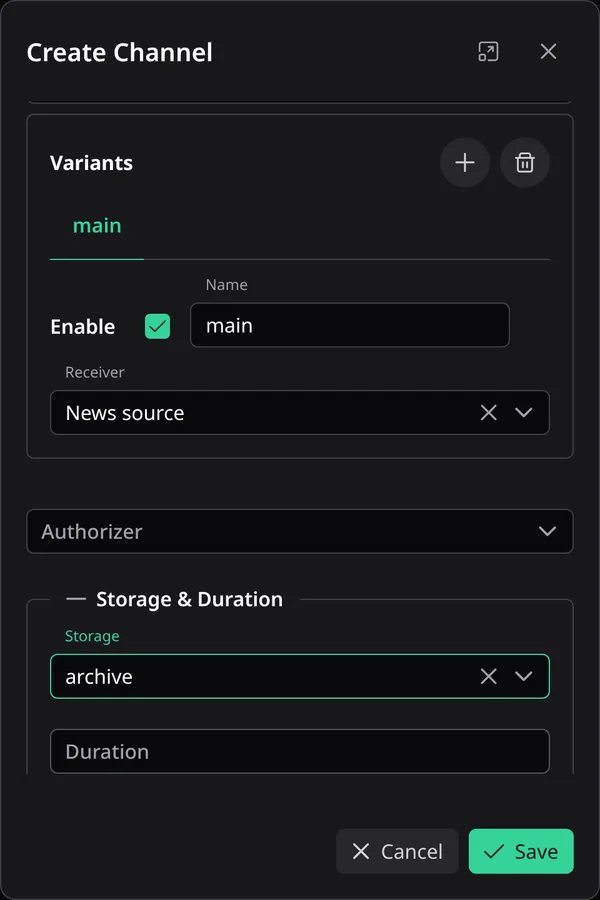
curl -sS -X POST -H "Authorization: Bearer $TOKEN" \ -H 'Content-Type: application/json' \ 'http://alta.example.com:8100/api/ott/channel' \ -d '{"id": "news", "name": "News", "enable": true, "storage": "archive", "variants": {"main": {"enable": true, "receiver": "news-source"}}}'Alta answers 204. Read more in Channels API.
One receiver feeds one variant of one channel.
5. Check the channel
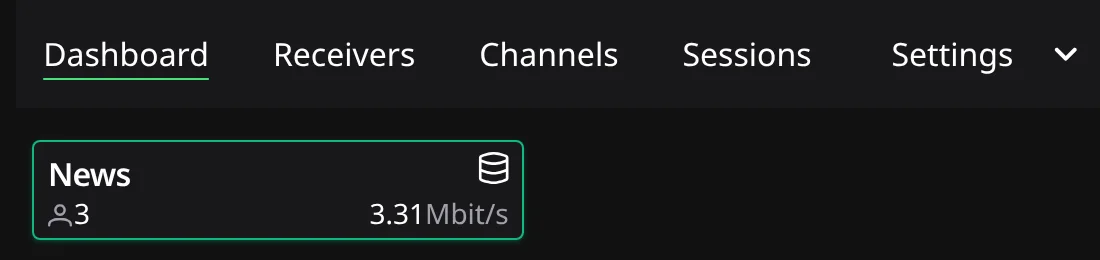
Section titled “5. Check the channel”Open Dashboard. A green card means the channel is streaming. The card shows the viewers and the speed.
curl -sS -H "Authorization: Bearer $TOKEN" 'http://alta.example.com:8100/api/ott/receiver/status'{ "receivers": { "news-source": { "totalBytes": "", "speed": "451733" } } }A speed that is not empty means Alta receives the stream.
The channel plays at /news/index.m3u8 on the OTT server:
curl -sS http://alta.example.com:8102/news/index.m3u8#EXTM3U#EXT-X-STREAM-INF:BANDWIDTH=3493002,CODECS="avc1.64001f,mp4a.40.33",RESOLUTION=1280x720,FRAME-RATE=25http://alta.example.com:8102/news/main/de21b4e1.m3u8Open the link in a player. In the lab ffmpeg decoded 250 frames from 10 seconds of it; the test channel has 25 frames per second.
ffmpeg -t 10 -i http://alta.example.com:8102/news/index.m3u8 -map 0:v:0 -f null -6. Play an earlier moment
Section titled “6. Play an earlier moment”ffmpeg -i 'http://alta.example.com:8102/news/index.m3u8?start=-60&duration=20' -map 0:v:0 -f null -start=-60 is 60 seconds before now and duration=20 asks for 20 seconds. In the lab, a minute after the channel started, ffmpeg decoded 600 frames: 24 seconds, because the playlist holds whole segments. Read more in URL Format for HLS Access.
7. Import the other channels at once
Section titled “7. Import the other channels at once”Alta reads an M3U playlist and makes a receiver and a channel for each item. The playlist of Astra is one. Alta downloads it from its own server.
Open Receivers and click Import m3u. Put the playlist link into File URL and click Next. Tick the channels you want, or Select All, and click Import selected.
http://astra.example.com:8000/playlist.m3u8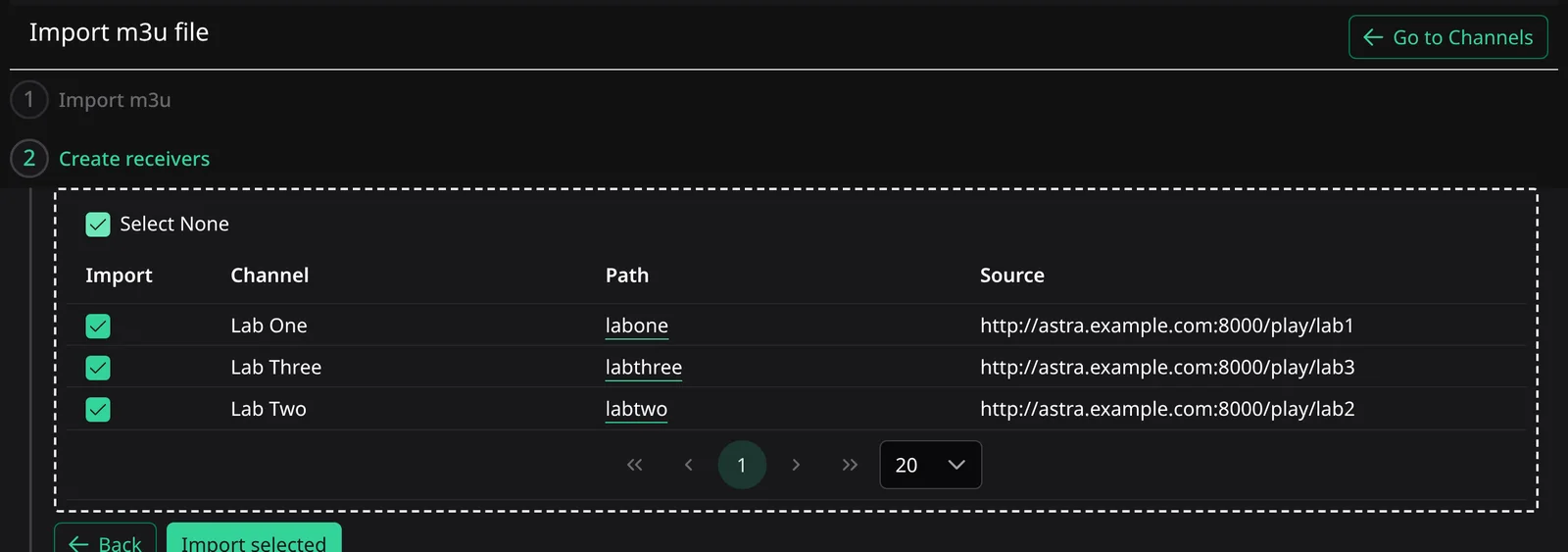
The last step lists what Alta skipped. In the lab it skipped Lab One: that channel already had a receiver with the same source.
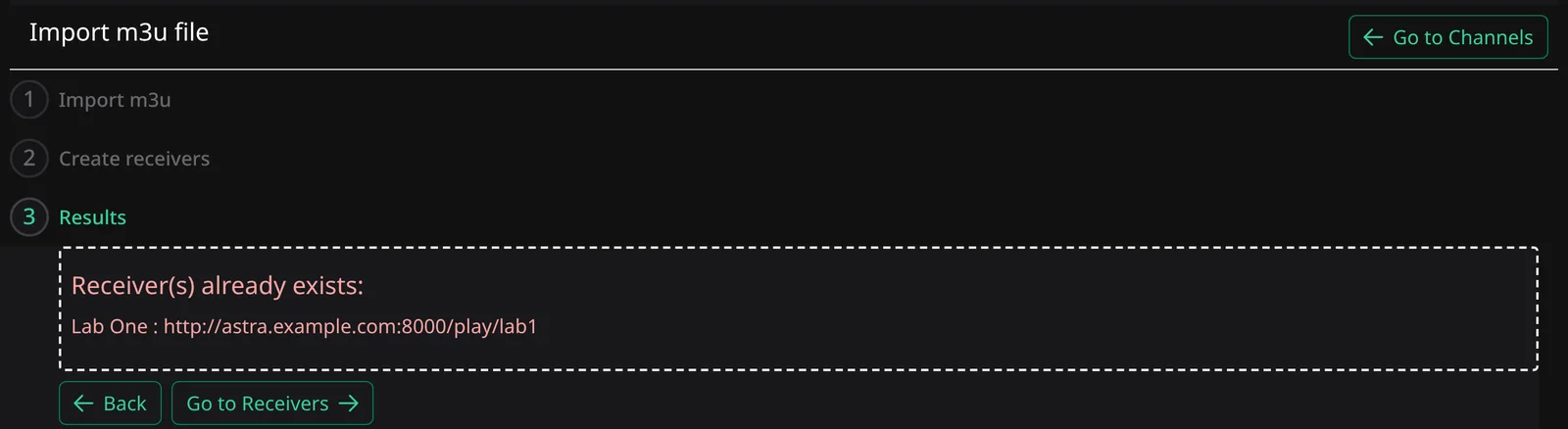
The imported receivers are off. Turn each one on with its switch in Receivers. In the lab Lab Two then showed 3.48 Mbit/s and its channel played at /labtwo/index.m3u8.
Read the playlist:
curl -sS -H "Authorization: Bearer $TOKEN" \ 'http://alta.example.com:8100/api/ott/receiver/importm3u?id=http://astra.example.com:8000/playlist.m3u8'[ { "id": "", "name": "Lab One", "channel_path": "labone", "address": "http://astra.example.com:8000/play/lab1" }, { "id": "", "name": "Lab Three", "channel_path": "labthree", "address": "http://astra.example.com:8000/play/lab3" }, { "id": "", "name": "Lab Two", "channel_path": "labtwo", "address": "http://astra.example.com:8000/play/lab2" }]The items came back with an empty id, so send the ones you want under keys of your own:
curl -sS -X PUT -H "Authorization: Bearer $TOKEN" \ -H 'Content-Type: application/json' \ 'http://alta.example.com:8100/api/ott/receiver/importm3u' \ -d '{"1": {"name": "Lab One", "channel_path": "labone", "address": "http://astra.example.com:8000/play/lab1"}, "2": {"name": "Lab Three", "channel_path": "labthree", "address": "http://astra.example.com:8000/play/lab3"}}'Alta made the receiver and the channel labthree/main. It answered 200 with the item it skipped: Lab One already had a receiver with the same source. Without skipped items the answer is 204. The imported receivers are disabled: enable them with the Receivers API.
8. If Astra restarts
Section titled “8. If Astra restarts”In the lab Astra was stopped for 8 seconds and started again. Alta kept retrying the source, and the receiver was back within 20 seconds of Astra starting again, with no action from us. While a receiver gets no stream, the card of its channel on the Dashboard is red.
What next
Section titled “What next”- A channel without an authorizer is public. Set up HTTP Authorization in Alta.
- For set-top boxes with middleware read Integration with Ministra (Stalker).
- To add a second bitrate to the channel, read Two bitrates for one channel: Alta with Senta.