
Web Interface
Alta provides a web interface that you can use to manage and configure the software.
Accessing the Web Interface
Section titled “Accessing the Web Interface”Web interface will be available at: http://<server-address>:<port>
<server-address>is the IP address or hostname of the server where Alta is installed<port>is the port number. Default is8100(can be set duringalta init)- Supported browsers: Firefox, Chrome, or Safari
Login to Web Interface
Section titled “Login to Web Interface”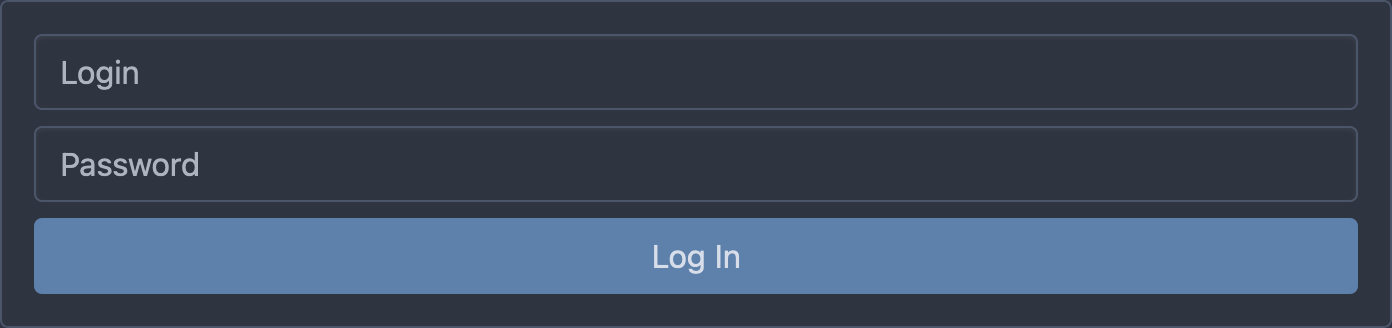
Default login is admin. Password set during alta init.
Top Bar Navigation
Section titled “Top Bar Navigation”- Dashboard: Overview of the system status including active channels, receivers, sessions, and storage usage. Quick insights into channel health and activity.
- Receivers: Manage and configure input sources such as RTMP, SRT, and more. Allows importing from M3U playlists and assigning inputs to channels.
- Channels: Create and monitor broadcast channels. Displays stream status, ingest state, and allows grouping of multirate variants.
- Sessions: Live viewer tracking with session details such as IP address, session time, and bitrate consumption.
- Settings: Configure advanced system options
Settings
Section titled “Settings”Configure advanced system options:
- Storages: Create Storages. Monitor archive usage and disk capacity
- Authorizers: Define access control and token rules
- Users: Manage user roles and credentials
- HTTP Servers: Set TLS, ports, and connection limits
- HLS Access: Configure cache, CORS, and retention policies
- Export Config: Download full configuration in JSON
- Logout: End the current web session